Install Xtreme HD IPTV on Firestick Quickly: 7 Proven Steps (2026)
Published on June 27, 2026 by MOATASSIM FARIH
Table of Contents
Introduction: How to Install Xtreme HD IPTV on Firestick
If you’re looking for the fastest and easiest way to install Xtreme HD IPTV on Firestick, you’ve come to the right place. Whether you’re setting up a brand-new Amazon Firestick or replacing another IPTV application, this step-by-step guide will walk you through the entire process—from enabling developer options and downloading the required APK to logging in with your Xtream Codes credentials and optimizing your streaming experience.
Installing Xtreme HD IPTV on a Firestick takes only a few minutes when you follow the correct steps. Once configured, you’ll gain access to thousands of live TV channels, sports, movies, TV shows, and on-demand content through a single, easy-to-use interface. Firestick remains one of the most popular streaming devices thanks to its affordability, portability, and excellent compatibility with IPTV applications.
In this guide, you’ll learn exactly how to install Xtreme HD IPTV on Firestick, configure your subscription correctly, troubleshoot common installation problems, improve streaming performance, and keep the application updated. We’ll also share practical tips to reduce buffering, protect your privacy with a VPN, and optimize your Firestick for the best possible viewing experience.
If you haven’t activated your IPTV service yet, you can compare our latest Xtreme HD IPTV pricing plans, explore available subscription options, or visit our homepage for additional setup guides and streaming resources before getting started.
Which Firestick Models Support Xtreme HD IPTV?
Before you install Xtreme HD IPTV on Firestick, it’s important to confirm that your device is compatible. Fortunately, the service works with nearly every modern Amazon Fire TV device, including Fire TV Stick Lite, Fire TV Stick (3rd Generation), Fire TV Stick 4K, Fire TV Stick 4K Max, Fire TV Cube, and Fire TV televisions running Fire OS.
For the best experience, we recommend using a Fire TV Stick 4K or Fire TV Stick 4K Max. These devices offer faster processors, improved Wi-Fi performance, and better support for Full HD and 4K streams. Older Firestick models can still install Xtreme HD IPTV on Firestick successfully, but navigation may feel slower when browsing large channel lists or video-on-demand libraries.
Before starting the installation, make sure your Firestick has enough available storage, is connected to a stable internet connection, and is running the latest version of Fire OS. Updating your device beforehand can prevent compatibility issues during installation and improve long-term streaming performance.
Step 1: Unlocking Developer Options on Firestick
Before you dive into the installation process, your device needs a few specific adjustments to allow third-party software. Amazon devices are strictly programmed to only download apps from the official store by default for security reasons. To learn how to install Xtreme HD IPTV on Firestick, you must first bypass these restrictions in the settings menu.
To begin, navigate to the “Settings” icon on your Firestick home screen and select the “My Fire TV” tile. Inside this menu, click on “About” and highlight the name of your specific Firestick device model. You must click the center button on your remote seven times quickly to trigger the “You are now a developer” notification.
This hidden feature is essential for advanced users who want to customize their device with premium streaming applications. Once the developer mode is active, you will see a new menu item appear called “Developer Options” under the My Fire TV tab. This is the gateway to understanding how to install Xtreme HD IPTV on Firestick without any software limitations or errors.
Step 2: Enabling Apps from Unknown Sources
Open the newly revealed Developer Options and locate the toggle for “Apps from Unknown Sources” to turn it on. A warning message will appear on your screen regarding the risks of installing apps from external or unverified web sources. Simply click “Turn On” to confirm, as the Xtreme HD IPTV application is a trusted and widely used streaming tool.
Without this setting enabled, your Firestick will block the installer file as soon as you attempt to run the sideload. This safety protocol is standard for all Android-based devices but is easily managed once you know the correct navigation path. Now that your hardware is ready, we can move directly into the core process of how to install Xtreme HD IPTV on Firestick.
Step 3: Installing the Downloader Utility App
The most reliable way to sideload applications on an Amazon device is by using the Downloader utility app. This tool acts as a browser and file manager that simplifies the process of fetching APK files from the internet. Follow these steps carefully to ensure you correctly master how to install Xtreme HD IPTV on Firestick using the Downloader method.
Return to the Firestick home screen and click the “Find” or “Search” icon to look for the “Downloader” application. Select the app with the orange icon from the search results and click the “Download” or “Get” button to install it. Once the installation is complete, launch the app and grant it permission to access your device’s media and files.
This application is the gold standard for anyone learning how to install Xtreme HD IPTV on Firestick because it is fast and lightweight. In the main address bar of the Downloader app, you will need to enter a specific URL or a numeric code. This code will automatically redirect your device to the official repository where the Xtreme HD IPTV installer is hosted.
What Happens After the APK Installs?
After the installation completes, avoid launching the application immediately. Instead, select Done to return to the Downloader app, then delete the APK file to recover valuable storage space. Since the installer is no longer required once the application is installed, removing it helps keep your Firestick organized and prevents unnecessary storage usage.
Next, return to the Firestick home screen and navigate to Your Apps & Channels. If the application doesn’t appear immediately, scroll to the bottom of the list and select See All. You can then move Xtreme HD IPTV closer to the front of your app list for quicker access.
These small optimization steps make it easier to use the application every day after you install Xtreme HD IPTV on Firestick, especially if you regularly switch between multiple streaming apps.
Step 4: How to Install Xtreme HD IPTV on Firestick (The APK Method)
Enter the direct download link for the Xtreme HD IPTV APK into the address bar and press the “Go” button on your remote. The app will begin downloading the installation package, which usually takes less than a minute depending on your internet connection speed. Once the download finishes, a prompt will automatically appear asking if you want to install the application on your device.
Click “Install” at the bottom right of the screen and wait for the “App Installed” notification to confirm a successful process. After the installation is finished, you should click “Done” rather than “Open” so that you can return to the Downloader app. This allows you to delete the installer file, which is no longer needed and only takes up valuable storage space.
Streamlining your Firestick storage is the key to preventing long-term buffering and ensuring the Xtreme HD app runs at peak performance.” — TechStream Insights.
Step 5: Configuring Your Subscription and Xtream Codes
Now that you have successfully learned how to install Xtreme HD IPTV on Firestick, it is time to set up your account. When you purchase your service, you should receive an email containing your unique login credentials and server URLs. These details are sensitive and should be kept private to prevent unauthorized access to your account.
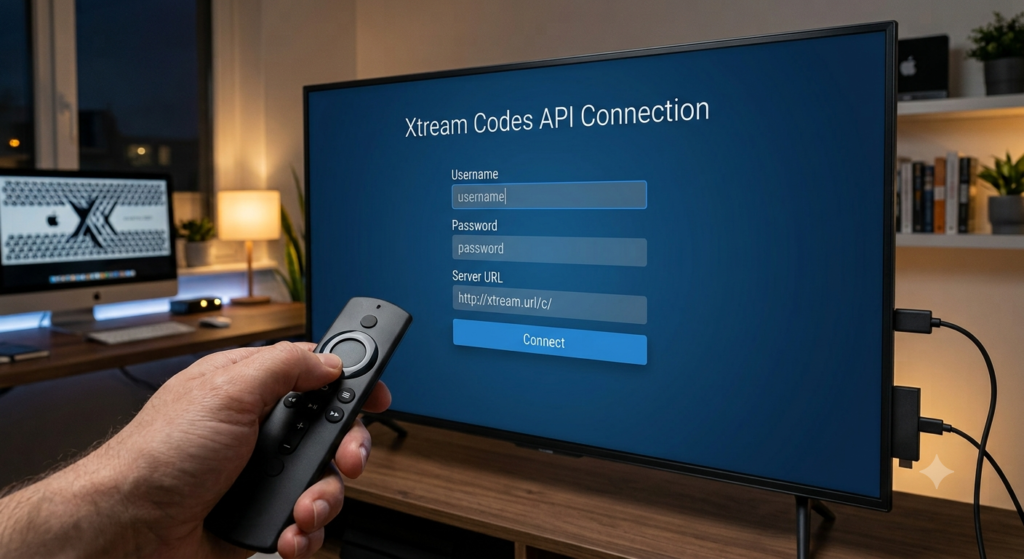
Launch the Xtreme HD IPTV app from your “Your Apps & Channels” list and select the “Login with Xtream Codes API” option. This method is superior to standard M3U links because it provides a much faster interface and automatically loads the EPG. Enter your username, password, and the server URL exactly as they appear in your official subscription confirmation email.
If you find that the IPTV subscription prices you are paying elsewhere are too high, consider switching to a premium bundled provider. Entering the correct server URL is the most common hurdle for users when they first learn how to install Xtreme HD IPTV on Firestick. Ensure there are no extra spaces or typos in the address, as even a single character error will result in a login failure.
Feature
Xtream Codes API
M3U Playlist URL
Setup Speed
Fast
Moderate
EPG Support
Automatic
Manual Upload
User Interface
Modern & Visual
List-Based
Stability
High
Variable
Best Practices After You Install Xtreme HD IPTV on Firestick
Successfully completing the setup is only the beginning. After you install Xtreme HD IPTV on Firestick, taking a few extra minutes to optimize your device can significantly improve streaming quality, reduce buffering, and create a smoother viewing experience. Many users focus only on the installation process, but proper device maintenance plays an equally important role in long-term performance.
One of the first things you should do after you install Xtreme HD IPTV on Firestick is check for available Fire OS updates. Running the latest software version helps improve compatibility with IPTV applications, enhances overall system stability, and reduces the likelihood of unexpected crashes. You should also remove unused applications to free up storage space, as a nearly full Firestick can negatively affect streaming performance and application responsiveness.
Network optimization is another important factor. Whenever possible, connect your Firestick to a reliable 5 GHz Wi-Fi network instead of a congested 2.4 GHz connection. If your router supports Quality of Service (QoS), prioritizing streaming traffic can further improve playback during busy household internet usage. Restarting both your Firestick and router periodically also helps maintain consistent performance.
Finally, remember that learning how to install Xtreme HD IPTV on Firestick is only part of building a reliable streaming setup. Regularly updating the application, verifying your subscription details, and using accurate Xtream Codes credentials will help prevent many common playback and login issues. If you continue experiencing buffering despite following every recommendation, reviewing your network configuration and IPTV account settings is often more effective than reinstalling the application.
By following these best practices after you install Xtreme HD IPTV on Firestick, you’ll maximize performance, extend the life of your streaming device, and enjoy a more reliable entertainment experience every time you watch live TV, sports, movies, or on-demand content.
Troubleshooting: Why is Xtreme HD IPTV Not Working?
Even the best streaming setups can occasionally run into technical difficulties or connectivity hurdles during the initial setup phase. Knowing how to install Xtreme HD IPTV on Firestick also means knowing how to fix issues like “App Not Found” or login errors. Most problems are related to network restrictions or hardware limitations that can be resolved with a few simple clicks.
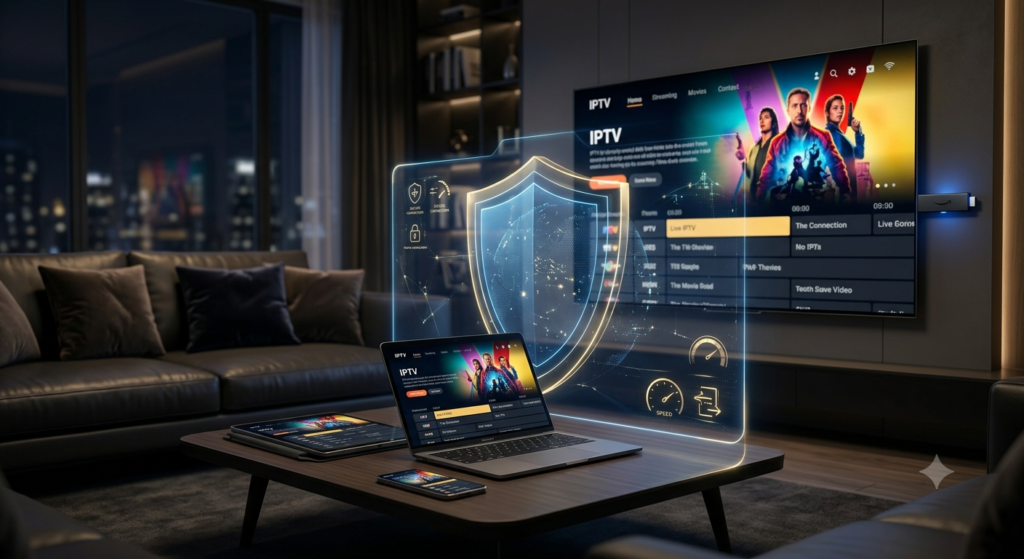
One of the main reasons users experience buffering after they install Xtreme HD IPTV on Firestick is due to ISP throttling. Internet Service Providers often slow down speeds when they detect high-bandwidth streaming from third-party IPTV servers. Using a high-quality VPN is the best way to mask your traffic and ensure you get the full speed you pay for.
Comparing IPTV Subscription Prices and Plans
Finding the right balance between cost and quality is essential when choosing a provider for your Firestick device. While many services offer similar channel lists, the stability of the servers and the quality of the customer support can vary wildly. It is always wise to review current IPTV subscription prices to ensure you are getting a fair deal for 4K streaming.
Plan Type
Average Price (USD)
Best For
Monthly Plan
$15 – $20
Testing the service quality
6-Month Plan
$45 – $60
Frequent viewers and sports fans
Annual Plan
$80 – $100
Maximum savings for long-term users
When you analyze the IPTV subscription prices, look for providers that offer a 24-hour trial period. This allows you to test how to install Xtreme HD IPTV on Firestick and check the channel quality before committing. Bulk discounts are very common, so opting for a yearly subscription can often save you over 50% compared to monthly billing.
FAQs: Everything You Need to Know
How do I update the Xtreme HD IPTV app?
Since this app is sideloaded, it will not update automatically through the Amazon App Store. You must repeat the steps on how to install Xtreme HD IPTV on Firestick using the latest APK URL. The new installation will typically overwrite the old app while preserving your login credentials.
Can I use Xtreme HD IPTV on multiple devices?
Most standard subscriptions are limited to one active connection at a time. If you wish to watch on multiple TVs, you should check the IPTV subscription prices for multi-room packages. Using your account on multiple IPs simultaneously without a multi-device plan may lead to temporary account suspension.
Is a VPN necessary for Xtreme HD IPTV?
While not strictly required for the installation, a VPN is highly recommended for privacy and performance. It prevents your ISP from seeing your streaming activity and bypasses regional blackouts for sports. This ensures that after you install Xtreme HD IPTV on Firestick, your stream remains smooth and anonymous.
s it safe to install Xtreme HD IPTV on Firestick?
Yes, it is generally safe to install Xtreme HD IPTV on Firestick when you download the application from a trusted source and keep your device updated. Avoid unofficial APK websites that may distribute modified or outdated versions of the app.
How long does it take to install Xtreme HD IPTV on Firestick?
Most users can install Xtreme HD IPTV on Firestick in less than 10 minutes. The exact time depends on your internet speed, Firestick model, and whether you’ve already enabled Developer Options and installed the Downloader app.
Can I install Xtreme HD IPTV on Firestick without the Downloader app?
Yes. While Downloader is the easiest option, you can also install Xtreme HD IPTV on Firestick using alternative methods such as File Manager applications or by transferring the APK from another Android device. However, Downloader remains the most straightforward and beginner-friendly solution.
Why can’t I install Xtreme HD IPTV on Firestick?
If you cannot install Xtreme HD IPTV on Firestick, check that Apps from Unknown Sources are enabled, your Firestick has enough available storage, and you’re using a valid APK download link. Restarting your device can also resolve temporary installation issues.
Which Firestick models support Xtreme HD IPTV?
You can install Xtreme HD IPTV on Firestick on nearly all current Amazon devices, including Fire TV Stick Lite, Fire TV Stick (3rd Generation), Fire TV Stick 4K, Fire TV Stick 4K Max, Fire TV Cube, and compatible Fire TV Smart TVs running recent versions of Fire OS.
Do I need a VPN before I install Xtreme HD IPTV on Firestick?
A VPN isn’t required to install Xtreme HD IPTV on Firestick, but many users choose to enable one before streaming to improve privacy, reduce ISP throttling, and maintain a more consistent connection during live broadcasts.
Can I update the app after I install Xtreme HD IPTV on Firestick?
Yes. After you install Xtreme HD IPTV on Firestick, you should periodically download and install the latest APK version. The new installation typically replaces the previous version while preserving your login information and application settings.
What should I do after I install Xtreme HD IPTV on Firestick?
After you install Xtreme HD IPTV on Firestick, sign in with your Xtream Codes credentials, verify that your channels load correctly, organize your favorites, clear unnecessary APK files to free storage, and check for Fire OS updates to ensure the best possible streaming performance.
Final Tips Before You Install Xtreme HD IPTV on Firestick
Before you install Xtreme HD IPTV on Firestick, take a moment to verify that your internet connection is stable, your Firestick has sufficient free storage, and your login credentials are correct. These simple checks can prevent many common installation and playback issues. Once you install Xtreme HD IPTV on Firestick, keep both your Fire OS software and IPTV application updated to benefit from improved performance, enhanced security, and better compatibility. Spending a few extra minutes preparing your device now can save significant troubleshooting time later while ensuring a smoother and more reliable streaming experience.
Conclusion: Your New Entertainment Powerhouse
Learning how to install Xtreme HD IPTV on Firestick is a game-changer for anyone looking to cut the cord and save money. With over 20,000 channels at your fingertips, you will never run out of high-quality content to watch with your family. The process is straightforward, requiring only a few minutes of setup to unlock a lifetime of premium digital entertainment.
Remember that the key to a great experience lies in a stable internet connection and a reliable service provider. By keeping an eye on competitive IPTV subscription prices, you can ensure you are always getting the best value for your money. Now that you have mastered the installation, it is time to sit back, relax, and enjoy your favorite shows in stunning 4K resolution.
This guide on how to install Xtreme HD IPTV on Firestick was designed to be your ultimate companion in the world of modern streaming. If you found these steps helpful, feel free to share this post with others who are looking to upgrade their home theater. Happy streaming, and welcome to the future of television!